Text Input
The Text Input object displays a text field where the player can enter text. This can be used to ask for the player name, get their email, create a search bar, enter a password, etc...
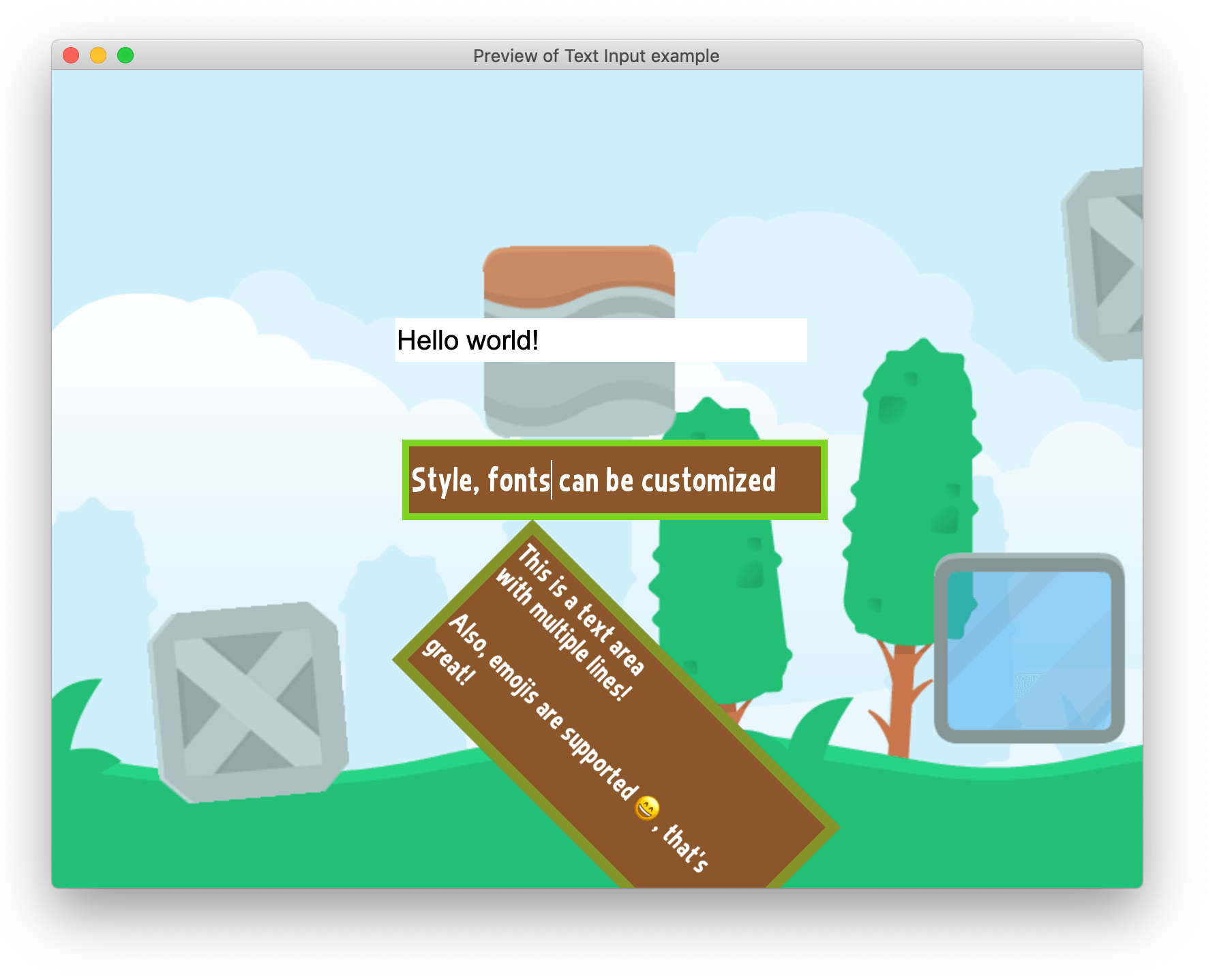
Text Input objects are customizable, and they use the native platform user interface to be rendered on top of the game. Depending on the device being used, the text input object will be treated differently. On touch devices (Android, iOS), a keyboard will be shown on screen, reducing the size available for the game. The player can use the keyboard as they normally would (as well as select the text, copy, paste, insert emojis, etc.).
Note about the rendering of this object
Warning
Read this part carefully to understand the limitations of the object.
Because the object is not rendered by the same hardware accelerated renderer as the rest of the game, the object has some limitations. It is rendered on top of the game using the user interface toolkit of the platform the game is running on (the browser, itself using the operating system of the device).
This means:
- You can't change the Z order of the object.
- You can't use effects with the object.
- Be careful if you use the object in a scene with a moving camera or if you rotate/move the object. It might be slightly desynchronized from the rest of the rendered game. This can create a weird effect for the player.
In general, prefer to use the object on a static screen and ensure that the keyboard on mobile devices won't hide critical information.
Input type
The field can be:
- A single line text input (default)
- A multiline text input (also called a "text area")
- Or a special single line text input: password, email, search field, number, phone number, url.
According to the type, some devices might display visual aids or a different keyboard to the user (especially on mobile). Password inputs will also hide the character that the user is writing.
You can also set a placeholder: a hint shown in the field while it is empty (for example "Enter your name"), which disappears as soon as the player starts typing. A maximum length can be set to limit how many characters can be entered (this is ignored for the number type).
Reading the text entered by the player
After adding a Text Input object, put an instance on the scene. You can then use the expression Text on the object in the events to read the text. For example, this event copies the content of the field into a Text object (to display it somewhere else on the screen):

Read-only and disabled fields
You can set, either from the object properties or using actions, the field as :
- Read-only. Text can still be selected and usually the appearance of the field does not change, but the text can't be modified.
- Disabled. Text usually can't be selected, nor modified, and some devices or platforms will gray the input.
Customizing the appearance
The object properties let you adjust the look of the field to match your game:
- Font and font size, as well as the text color and text alignment (left, center or right).
- The fill color and fill opacity of the field background.
- The border color, opacity and width (set the width to 0 to remove the border).
- The horizontal and vertical padding, which controls the space between the border of the field and the text inside it.
These can all be changed at runtime with actions, for example to highlight a field in red when the player enters an invalid value.
Detecting submission and focus
When a field is focused, its cursor is active and the player can type into it. You can:
- Use the Input is submitted condition to react when the player validates the field, which usually happens when the Enter key is pressed (or a dedicated button on a mobile virtual keyboard). This is useful to move to the next field of a form, send a chat message or run a search.
- Use the Focused condition to check whether a field is currently focused, and the Focus action to give focus to a field from events (as if it was clicked) — for example to put the cursor in the first field when a form opens.